Ways to Boost Your Home Wifi Speed

Last Tuesday, I was right in the middle of a high-stakes Zoom call when my screen froze, leaving me staring at my own pixelated, panicked expression. It’s that specific, sinking feeling of helplessness when you know exactly how to fix slow wifi in theory, but the reality is just a spinning loading icon that makes you want to throw your laptop across the room. I’m so tired of tech blogs telling you that you need to drop $400 on a mesh system or rewire your entire apartment just to get a stable connection. Most of the time, the solution isn’t a massive hardware upgrade; it’s usually just a few small, annoying friction points that we can clear out without breaking the bank.
I’m not here to give you a lecture on signal frequencies or complex network protocols that require a degree to understand. Instead, I want to share the low-effort tweaks that actually work when you’re already exhausted and just want your internet to behave. We’re going to focus on a few practical, repeatable steps to get your connection back to something usable so you can get back to your life.
Simple Wifi Router Placement Tips for Better Coverage
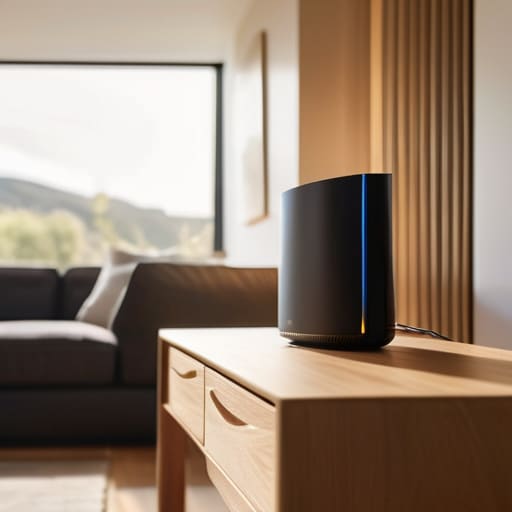
First things first: stop hiding your router in a cabinet or tucked behind the TV. I used to do this because I hated the way the black box looked against my bookshelf, but it was killing my connection. WiFi signals are basically light waves; they don’t like traveling through thick walls, heavy furniture, or metal enclosures. For the best results, try to find a central, elevated location in your home. Putting it on a high shelf in the living room instead of on the floor can actually make a massive difference in how the signal spreads through your rooms.
You also need to be mindful of what’s sitting right next to the device. Things like microwaves, baby monitors, and even some Bluetooth speakers can reduce wireless interference and cause those annoying momentary drops. If you notice your connection stutters every time you heat up lunch, that’s your culprit. If you’ve already tried moving things around and your internet speed test results are still looking sluggish, you might eventually need to look into a wifi extender vs mesh network setup, but let’s start with the easy stuff first.
Check Your Internet Speed Test Results for Quick Wins

Before you go out and spend a fortune on a new setup, you need to know what you’re actually working with. I used to get so frustrated when my video calls lagged, but I realized I was just guessing at the problem. Instead, I started running a quick test. When you look at your internet speed test results, don’t just look at the big number; pay attention to the “ping” or latency. If your download speeds look great but your ping is sky-high, that’s usually why your connection feels “stuttery” even though the bandwidth is technically there.
If the numbers are significantly lower than what you’re paying your provider for, it might be time to look at the hardware itself. Sometimes, the fix is as simple as a firmware update for your router, which can clear out those weird little software glitches that slow everything down. It’s one of those five-minute tasks that I usually tackle while my morning coffee is brewing. It’s not a permanent fix for a bad provider, but it’s a low-effort way to rule out the easy stuff before you start overcomplicating your life.
Five low-effort tweaks to get your connection back on track
- Clear the digital clutter by checking which devices are hogging your bandwidth. If your smart TV is downloading a massive update in the background while you’re trying to join a Zoom call, it’s going to feel like your internet has died. I usually just go through my device list and see if there’s anything running a heavy update or a cloud backup that can wait until I’m asleep.
- Try the “old reliable” method: a simple restart. It sounds cliché, but unplugging your router, waiting about thirty seconds, and plugging it back in clears out the cache and can resolve weird glitches that have been building up for days. It’s the digital equivalent of a quick nap, and it actually works more often than I’d like to admit.
- Switch your frequency bands if you can. Most modern routers have both 2.4GHz and 5GHz options. If you’re sitting right next to the router, use the 5GHz band for speed; if you’re a few rooms away, the 2.4GHz band is much better at cutting through walls. It’s a small setting change that makes a massive difference in stability.
- Update your router’s firmware. We all tend to ignore those little notification lights or admin alerts, but outdated software can lead to sluggish performance and security holes. Log into your router’s settings once in a while and hit “update”—it’s a one-time task that keeps things running smoothly in the background.
- Limit the number of “always-on” devices. Every smart bulb, plug, and gadget you add to your network takes up a tiny bit of capacity. If your WiFi is consistently struggling, it might be time to audit your smart home setup and see if there are things that don’t actually need to be connected to the internet 24/7.
The TL;DR for a Better Connection
Move your router out of the cupboard and into the open; physical barriers are the fastest way to kill your signal.
Use speed tests to figure out if the problem is actually your provider or just a device that needs a quick restart.
Don’t overcomplicate it—if the basics don’t work, it’s okay to call your ISP instead of spending your entire evening troubleshooting.
Getting Back to Normal
At the end of the day, fixing slow WiFi doesn’t require a degree in network engineering or a massive budget for new hardware. We’ve covered the basics: moving your router out of that dusty corner, checking your actual speeds to see if the problem is even on your end, and making sure your device isn’t just struggling with a bad signal. Most of the time, it’s just a matter of removing the small physical or digital obstacles that are clogging up your connection. If you’ve tried these tweaks and things are still lagging, it might be time to call your provider, but don’t let a spinning loading icon make you feel like your whole evening is ruined.
I know how frustrating it is when you finally sit down to unwind or get some focused work done, only to be interrupted by a buffering screen. It’s one of those tiny, persistent frictions that can really drain your mental battery. But remember, you don’t need a perfect, enterprise-grade setup to have a functional home; you just need a connection that actually works when you need it to. Take a breath, try one more quick reset, and once you’re back online, try to leave the tech stress behind so you can actually enjoy your downtime.
Frequently Asked Questions
Do I actually need to buy a new router, or can I just fix what I already have?
Honestly, don’t go buying a new router just yet. It’s easy to assume the hardware is dead, but usually, it’s just a configuration issue or a signal blockage. Before you drop a hundred bucks, try a factory reset or update your firmware. If you’ve tried the basic tweaks and your speeds are still abysmal even when you’re standing right next to the device, then maybe it’s time to upgrade. For now, let’s troubleshoot first.
Is it worth setting up a mesh system, or is that overkill for a small apartment?
Honestly, for a small apartment, a mesh system is usually overkill. You’re likely paying for nodes you don’t actually need. If you’re struggling with dead zones, it’s more often a placement issue or interference from your neighbor’s router than a lack of coverage. Save your money. I’d rather spend that budget on a decent long ethernet cable or a better router if things get really bad, but for now, let’s try the simpler fixes first.
How can I tell if the problem is my actual internet service or just my device?
The easiest way to figure this out is the “one vs. many” test. If your laptop is crawling but your phone is streaming video perfectly in the same room, the problem is likely your device—maybe it needs a restart or a software update. But if every single gadget in the house is struggling at once, it’s almost certainly your router or the service itself. It’s a quick way to stop troubleshooting the wrong thing.


I believe that life doesn't need to be optimized to perfection, just made slightly more manageable. My goal is to help you find systems that actually work when you're tired, not just when you're motivated. Let's focus on small, repeatable wins that clear the path for what actually matters.