Smartphone Hacks You Should Start Using Today
I was sitting on my floor last Tuesday, surrounded by half-dead succulents and a pile of unread work emails, when I realized my phone wasn’t a tool anymore—it was a source of friction. I had spent twenty minutes trying to find a single calendar invite because my home screen looked like a digital junk drawer, and honestly, I just wanted to throw the thing across the room. Most “productivity gurus” will tell you that you need a complete digital overhaul or some expensive, high-concept app ecosystem to stay organized, but that’s just more noise. I’m not interested in those overcomplicated smartphone tips and tricks that require three hours of setup and a degree in computer science; I just want my phone to stop getting in my way.
I’m not here to sell you on a “perfectly optimized life” because, let’s be real, some days you’re just trying to survive until Friday. Instead, I want to share the low-effort, actually sustainable adjustments I’ve made to my own device to keep the chaos at bay. We’re going to focus on small, repeatable wins—the kind of settings tweaks and decluttering habits that work even when you’re too exhausted to care about being “productive.”
Low Energy Mobile Device Productivity Hacks That Actually Stick
When I’m running on fumes after a long shift, the last thing I want to do is spend twenty minutes meticulously organizing my folders. Instead, I lean on a few mobile device productivity hacks that require almost zero mental heavy lifting. One of my favorites is setting up “Focus Modes” or “Do Not Disturb” schedules that trigger automatically. You don’t need to manually silence everything every time you sit down to eat or try to unwind; just set it once and let the phone do the gatekeeping for you.
Another way to stop the mindless scrolling is to move your most distracting apps off your home screen entirely. If you have to actually search for Instagram in your app library, you’ve created just enough friction to make you stop and ask, “Do I actually want to do this?” I also swear by using hidden touchscreen gestures to navigate faster. Learning a simple swipe to switch between apps or a quick tap to go home saves those tiny, cumulative seconds of frustration that add up when you’re already feeling drained.
Hidden Touchscreen Gestures to Save Your Fading Attention Span
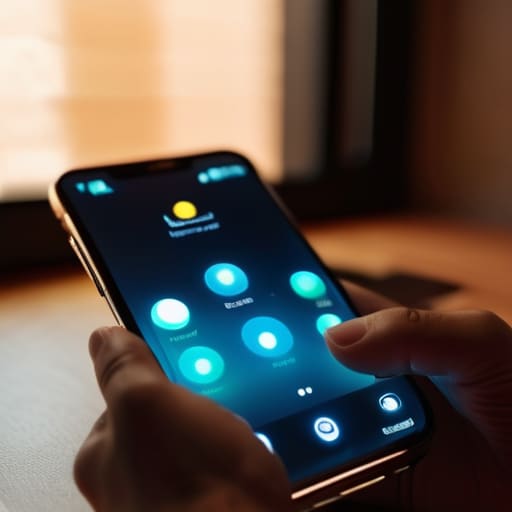
If you’re like me, your thumb is basically on autopilot by 4:00 PM. When my brain feels like mush, even the smallest tap feels like too much effort. That’s where learning a few hidden touchscreen gestures actually pays off. For instance, if you’re on an iPhone, stop struggling to reach the top of that massive screen; just swipe down with your thumb anywhere on the lower half to pull up your search bar or Control Center. It sounds small, but it stops that micro-moment of frustration that usually sends me spiraling into a mindless scroll.
On the Android side, mastering the “back” gesture—swiping from either edge of the screen—is a total game-changer for my workflow. It’s much more fluid than hunting for a tiny back button, especially when I’m multitasking between my planner and a work email. These little iOS and Android secret shortcuts aren’t about being a tech wizard; they’re just about reducing the friction of navigating your phone when you’re running on fumes. It’s about making the device work for you, rather than feeling like you’re constantly fighting it.
Small Tweaks to Stop Your Phone from Draining Your Brain
- Turn off all non-human notifications. If it’s not a text or a call from a real person, you don’t need a buzz in your pocket. I silenced every single app except for the essentials, and the constant “phantom vibration” anxiety disappeared almost instantly.
- Set up a “Focus Mode” for your evening wind-down. Instead of just putting your phone on silent, use a setting that hides all your work emails and Slack notifications after 7:00 PM. It creates a digital boundary that helps me actually leave the office, even when I’m working from my couch.
- Clean up your home screen by moving “doom-scrolling” apps into folders on your second or third page. If you have to actually swipe and search to find Instagram or TikTok, you’re much less likely to open them reflexively when you’re just bored or tired.
- Use the “Scheduled Summary” feature if you’re on iOS. Instead of getting a dozen little pings throughout the day from news alerts or shopping apps, have them all bundled into one single delivery at a time you actually choose—like during my lunch break.
- Declutter your Control Center. Strip it down to just the tools you actually use, like a flashlight, a timer, or your music controls. Getting rid of the extra icons makes the interface feel less cluttered and keeps you from getting distracted by other widgets when you’re just trying to set a quick kitchen timer.
The Bottom Line
Stop trying to build a “perfect” digital ecosystem; just focus on removing the friction that drains your battery and your brain.
Use gestures and automation to handle the repetitive stuff so you don’t have to think when you’re already mentally fried.
Keep your setup simple enough that it still works on the days you have zero motivation to maintain it.
The Goal Isn't a Perfect Phone
Look, I’m not asking you to spend your entire Sunday reorganizing your home screen into a color-coded masterpiece or mastering every single obscure gesture in the manual. That’s just more work. The whole point of these tweaks—from the low-effort productivity hacks to those quick touchscreen shortcuts—is to remove the friction that makes your phone feel like a source of stress rather than a tool. If you only implement one thing, let it be the one that stops you from mindless scrolling when you’re already mentally drained. Focus on the small, repeatable wins that actually give you a few minutes of peace back at the end of a long day.
At the end of the day, your phone should serve you, not the other way around. We spend so much of our lives staring at these little glass rectangles that it’s easy to feel like we’re constantly losing a battle against notifications and digital clutter. But you don’t need a total lifestyle overhaul to feel more in control. Just aim for a slightly more manageable digital environment. Once you clear away the unnecessary noise, you’ll find you have a lot more energy for the things that actually matter—the stuff that happens when you finally decide to put the phone down.
Frequently Asked Questions
How do I stop my phone from constantly distracting me without feeling like I'm totally disconnected from my friends?
The trick is to stop treating every notification like an emergency. I started by turning off all non-human alerts—so if it’s not a text or a call from a real person, my phone stays silent. I also use “Focus Modes” to hide social media apps during work hours. You aren’t cutting people out; you’re just deciding when you actually have the bandwidth to engage with them.
Are there any ways to clean up my storage without having to spend an entire Sunday deleting photos and old messages?
Look, I don’t have the mental bandwidth for a “digital declutter Sunday” either. Instead of scrolling through years of photos, just go into your settings and look at your “Large Attachments” in Messages. Deleting a few dozen bloated video clips from a group chat takes two minutes and clears more space than deleting a thousand screenshots. Also, set your apps to “Offload Unused” automatically. Let the phone do the heavy lifting for once.
Which specific settings should I change if I want to save battery life without constantly hunting for a charger?
Look, I’ve been there—staring at a 4% battery warning while trying to navigate home. To stop the constant charger hunt, go into your settings and kill “Background App Refresh.” It’s a silent battery killer. Also, switch to Dark Mode if you have an OLED screen; it actually makes a difference. Finally, turn off “Background App Refresh” and Location Services for anything that doesn’t strictly need it. It’s not perfect, but it buys you breathing room.


I believe that life doesn't need to be optimized to perfection, just made slightly more manageable. My goal is to help you find systems that actually work when you're tired, not just when you're motivated. Let's focus on small, repeatable wins that clear the path for what actually matters.